
Only administrators can set up email notifications.
An email notification is sent automatically when a new report is recorded with one of the chosen tags (previously called types). The email names the tag, and its See the Report button opens a public link to the report. The recipient does not need to sign in to Venzeo™.
Example: you have a tag named Damaged vehicle and want your service centre to know as soon as a report with that tag comes in. The email links to the report with its photos, location and time, so they can act on it.
Tip: Always make sure you have consent from the email account holder before you set up a notification.
Set up a notification
- Open the main menu, expand Notifications & Alerts and choose Manage notifications.
- Click Setup new notification.
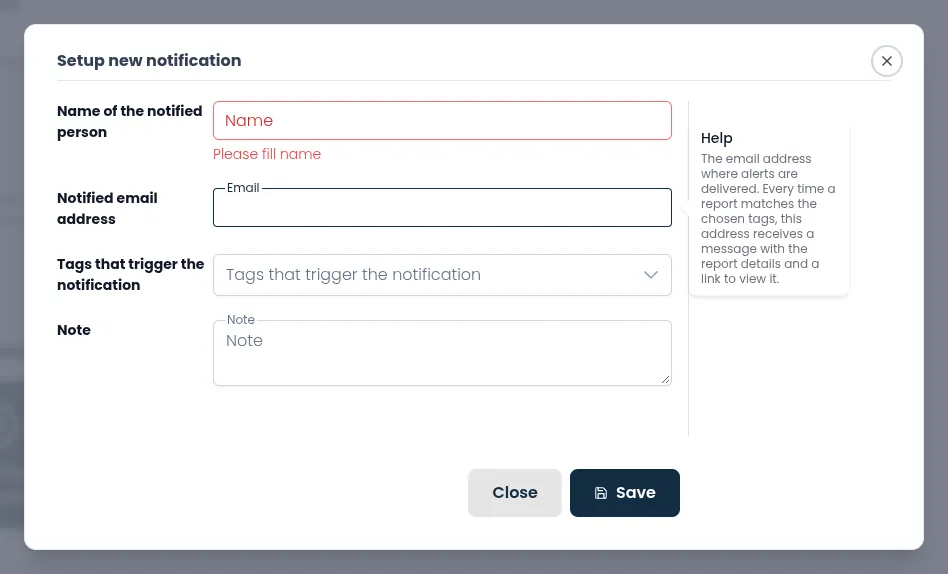
- In the pop-up, fill in:
- Name of the notified person, or the name of the organisation that owns a shared email address.
- Notified email address, where the email is sent.
- Tags that trigger the notification. The email is sent when a report has at least one of the tags you choose here.
- Optional: Note, an internal reminder of why you set up this notification. Only administrators see it.
- Click Save. The notification has been set up. appears and the person is listed with their tags.
If the email address already has notifications, Venzeo™ adds the new tags to it. A report with two of the person’s tags sends two emails, one for each tag.
You can also start from a tag: on the Tags & Categories page, click Setup Email Notification next to a tag that has no notifications yet. The pop-up opens with that tag already selected.
Change a notification
- Open the main menu, expand Notifications & Alerts and choose Manage notifications.
- Click Edit next to the person.
- Change the details or the tags.
- Click Save. The notification has been updated. appears.
Stop all alerts for a person
- Open the main menu, expand Notifications & Alerts and choose Manage notifications.
- Click Edit next to the person.
Warning: Cancel all notifications removes every tag from the person, and the person disappears from the list. To send them alerts again, you have to set up the notification again.
- Click Cancel all notifications and confirm with Yes. The contact notifications have been cancelled. appears.
If an alert does not arrive, see Alert emails aren’t arriving.