
Anyone who can sign in to the Venzeo™ web interface can export reports.
Everything the filter shows is exported, so set the filter first, see Filtering reports. If you select reports with Select, only those are exported.
Warning: Check the filtered reports and their number before you share them outside your organisation.
Open the export options
- Open the main menu and, under Reports, choose List view or Gallery View. Export is not available in the map view.
- In the top bar, click the export button, for example Export & Share 24 reports. When the main menu or the filter panel is open on a smaller screen, it is called Export.
- Choose an option. Download all filtered photos appears only in the gallery.
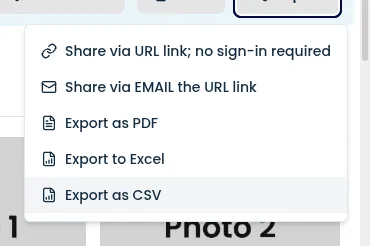
To share the filtered reports through a link that needs no sign-in, see Sharing a live view of reports.
Download a PDF
- In the export options, choose Export as PDF. The Export to PDF pop-up opens.
- Choose what the PDF should contain, for example photos and comments. A PDF holds at most 2,000 reports.
- Click Download PDF. The pop-up shows Generating your PDF….
- When Your PDF is ready appears, click Open to view it in a new tab, or Download to save it to your device.
Note: Keep the pop-up open until the PDF is ready. If you close it earlier, the download stops and nothing is emailed. For administrators, the PDF still appears under Manage PDF, CSV & Links once it is ready. If it takes a while, click Send via email instead to get the link by email.
Get a PDF by email
- In the export options, choose Export as PDF. The Export to PDF pop-up opens.
- Choose what the PDF should contain.
- Check the recipient address in the Email field.
- Click Send PDF via email. The pop-up closes and a download link arrives by email within a few minutes.
Download an Excel or CSV file
- In the export options, choose Export to Excel or Export as CSV.
- Choose the columns the file should contain and the File language.
- Click Download. The pop-up shows Preparing your file….
- When Your file is ready appears, click Download to save it to your device.
Note: Keep the pop-up open until the file is ready. If you close it earlier, the download stops. For administrators, the file still appears under Manage PDF, CSV & Links once it is ready. If it takes a while, click Send via email instead to get the link by email.
Get an Excel or CSV file by email
- In the export options, choose Export to Excel or Export as CSV.
- Choose the columns the file should contain and the File language.
- Check the recipient address in the Email field.
- Click Send via email. The pop-up closes and a download link arrives by email shortly.
Review exports as an administrator
Administrators find every link to filtered reports and every generated PDF, Excel and CSV file in the main menu under Exported PDF, CSV & Links > Manage PDF, CSV & Links. Links to a single report, created with Share link or Send via email, are not listed. Excel files cannot be deactivated yet. To deactivate a link shared by mistake, see Reviewing and removing exported PDFs, CSVs and links.