
Help Center
Go back to application
Help Center
Go back to application
Reports Management
Editing ImagesFiltering ReportsSharing One Report via EmailViewing Reports in a List, Map, or GalleryExporting Filtered ReportsViewing ReportsHow Can I Comment on Reports?
Mobile App & Devices
Venzeo™ Mobile App OverviewWhat Data Plan Is Needed?Activating Mobile AppCreating First ReportUpdate Venzeo™ Mobile AppRequirements of the Mobile Device (Android and iOS)
Case Studies
FCC & Venzeo™ (7 Years of Experience)
Administrating Venzeo™ System
Administration & Customisation OverviewIT Administrator InstructionsCustomizing InterfaceDeactivating Mobile App (Device) within Admin InterfaceDevices with Mobile AppStatus ManagementManaging Type CategoriesManaging TypesUser TypesAdding New UserUser EditingActivating an Email Alert NotificationSecurity of the Venzeo™ SystemAudit LogsGroups
Places of interest
Managing Places of Interest
Projects / Orders
Managing Projects

Deactivating Mobile App (Device) within Admin Interface

In case you do not use the mobile device anymore, or you lost it, it's time to deactivate it.

To deactivate a mobile device, follow these simple steps:

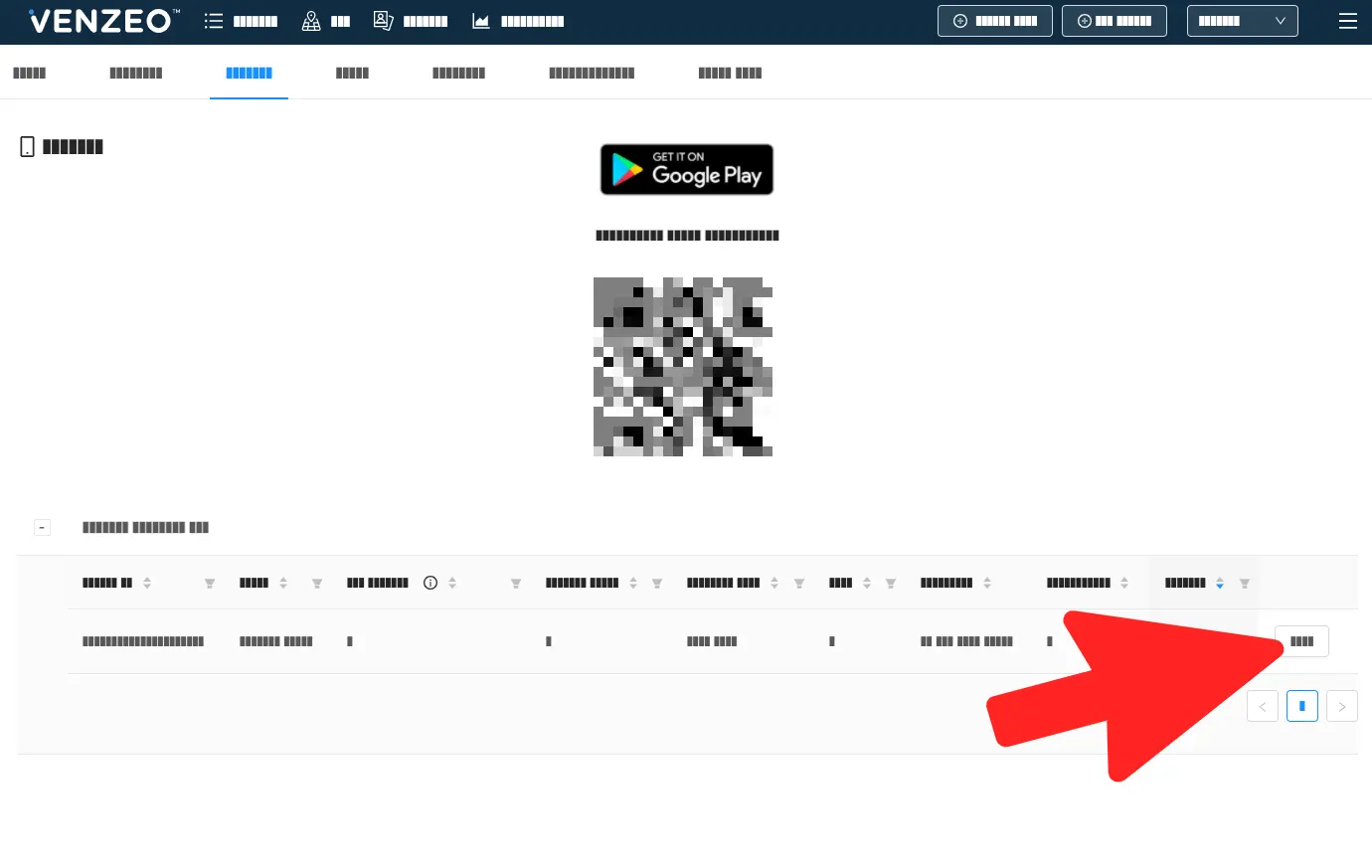
1. In Settings > Devices, click the Edit button on the device you would like to deactivate.
2. Switch Allowed to No.
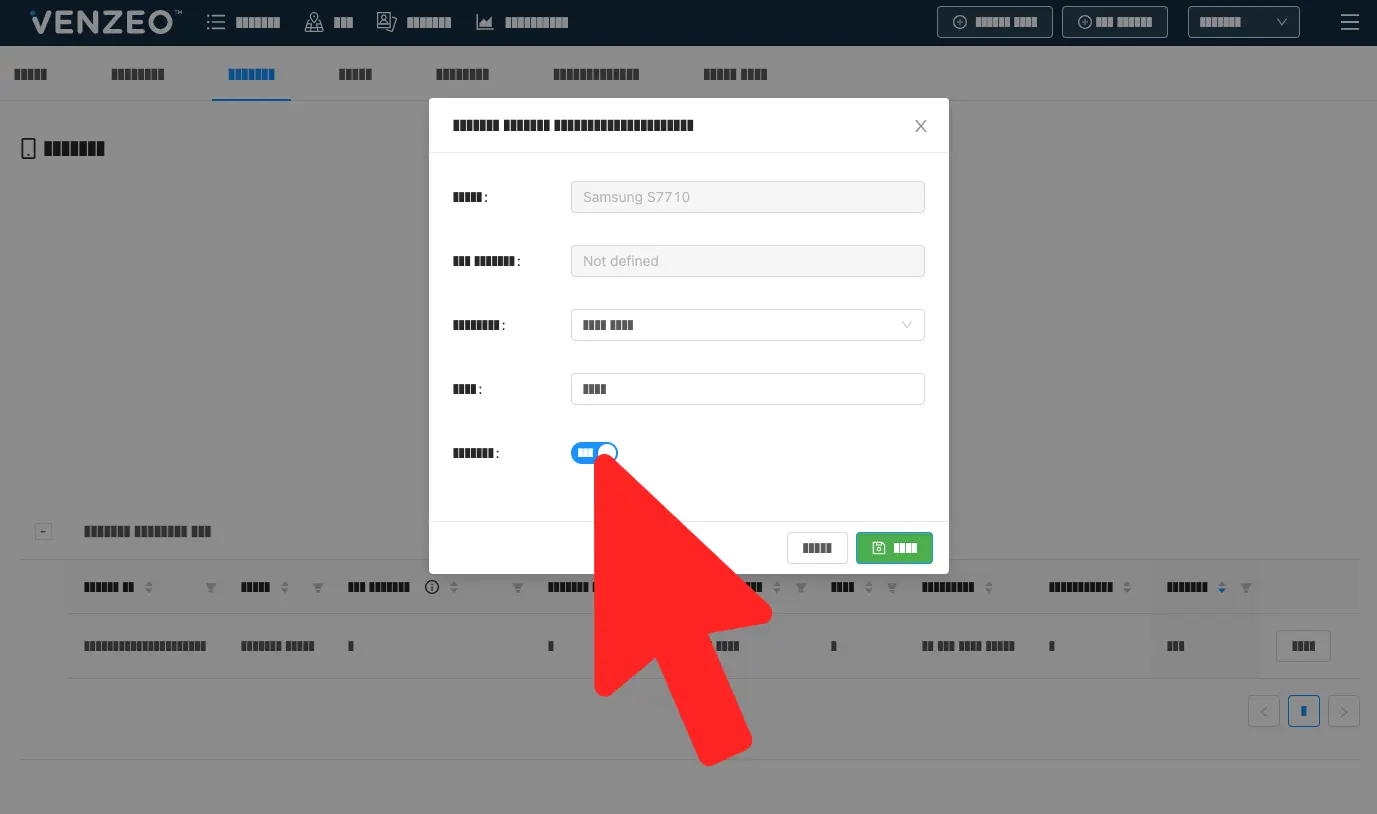
3. Then click Save.

Your Venzeo™ account won't accept any reports sent from this mobile device anymore.


WARNING: Only Administrators can deactivate a mobile device.

English
  • English
  • Slovak
Powered by Product Fruits