
Anyone who can sign in to the Venzeo™ web interface can view reports.
Every report sent from the Venzeo™ mobile app appears in the web interface. You can look at the same reports in three views: a list, a map and a photo gallery. After signing in, administrators land on the Dashboard and other users land on the report list.
Read report details in the list
- Open the main menu. If the menu is collapsed, click Show Menu.
- Under Reports, choose List view. Each report shows its photos, address, tags, status, time and reporter.
- Move the mouse over a report. Its buttons appear, for example Show on map, Change status, Comments and Send via email.
- If a button is not visible, click Actions to see the remaining buttons.
Find reports around an address on the map
Example: a customer calls about a particular street. Search for the street on the map and check the reports around it.
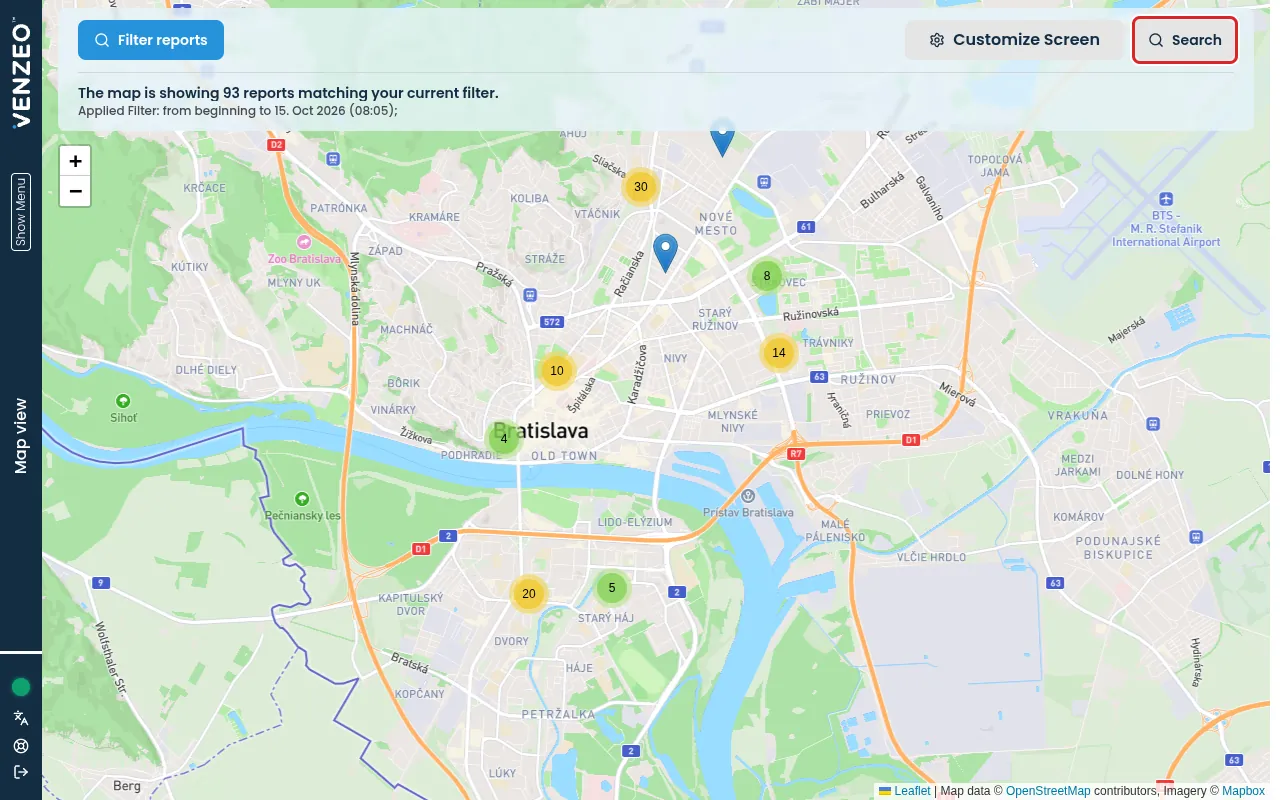
- Open the main menu and, under Reports, choose Map view. Every report appears as a pin at the place where it was recorded.
- In the top bar, click Search address on map. On a smaller screen the button is called Search.
- Type the address and choose it from the suggestions. The map moves to that address.
- Click a pin to open the report.
Look through photos in the gallery
Example: filter the tag Damaged and look through all its photos in a quality or customer-support meeting.
- Open the main menu and, under Reports, choose Gallery View. The photos from all reports appear side by side.
- Click a photo to open it full screen.
- Optional: click Show Report Details to open the report the photo belongs to.
Other views
Depending on how your organisation is set up, Reports in the main menu also contains Places of Interest view, Project View and Task View. They show the same reports grouped by place of interest, project or task. Asset View lists your assets instead, see Tracking assets such as bins and vehicles.
The filter works in every view. To show only the reports you need, see Filtering reports. To share or download the reports from the list or the gallery, see Exporting filtered reports.